Videos and voice messages
Video links from YouTube, Vimeo and the like play in the feed on their own - paste one into a post and the player appears. You can also attach a video file directly - a competition attempt, a form check - send one in a private message, or record a voice message in a conversation. Those three upload to your own storage, not ours.
Why your own bucket
StrongFish hosts no video or audio at all, because we want to stay free and open source - and that comes with some trade-offs.
So you bring a destination: an S3-compatible bucket or a Google Drive folder. The app uploads there and the post carries a link to the file. Until you configure one, the video and microphone buttons answer "set up your storage first" - the API returns a 405, which is the app saying the request was fine, the feature is simply not available on your account yet.
Configure it once and it covers all three: videos in posts, videos in messages, and voice messages.
Option 1: an S3-compatible bucket
Works with AWS S3, MinIO, Scaleway, DigitalOcean Spaces - anything speaking the S3 API.
- Create a bucket, and an access key that can write to it.
- The bucket does not have to be public. StrongFish serves a bucket's files itself, with your credentials, so nothing has to be readable without them. By default it still asks for a public-read ACL as it writes (handy if you also serve the bucket through a CDN); if your bucket forbids that - and many do - turn on This bucket is not public and the upload stops asking.
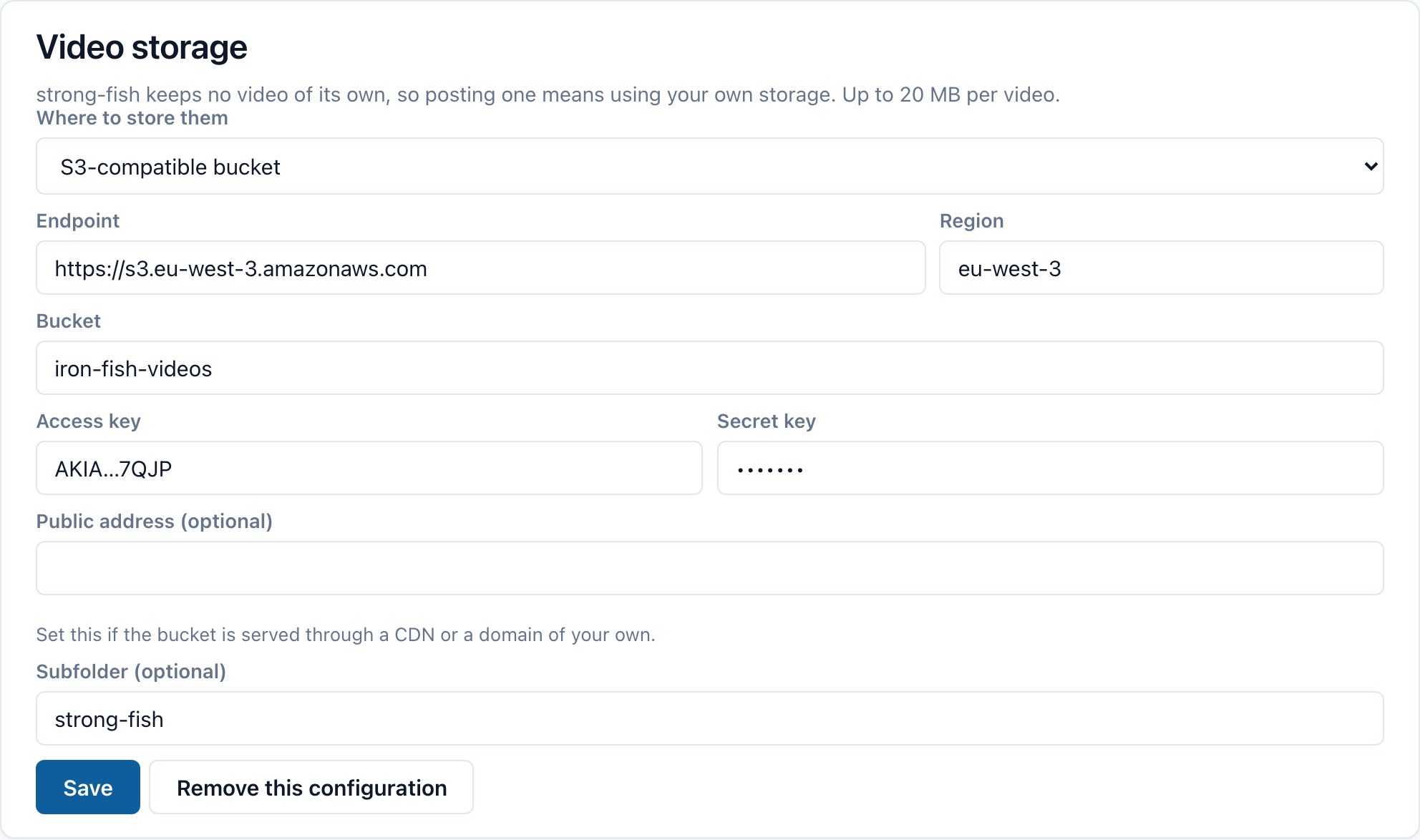
- In the app: Settings → Video storage, pick S3-compatible bucket.
- Fill in:
| Field | Example |
|---|---|
| Endpoint | https://s3.eu-west-3.amazonaws.com |
| Region | eu-west-3 |
| Bucket | my-lifting-videos |
| Access key / Secret key | from your provider |
| Subfolder (optional) | strong-fish |
| Public address (optional) | your CDN or custom domain, if the bucket is served through one |
- Save.
Option 2: a Google Drive folder
- In the Google Cloud console, create a service account and download its JSON key.
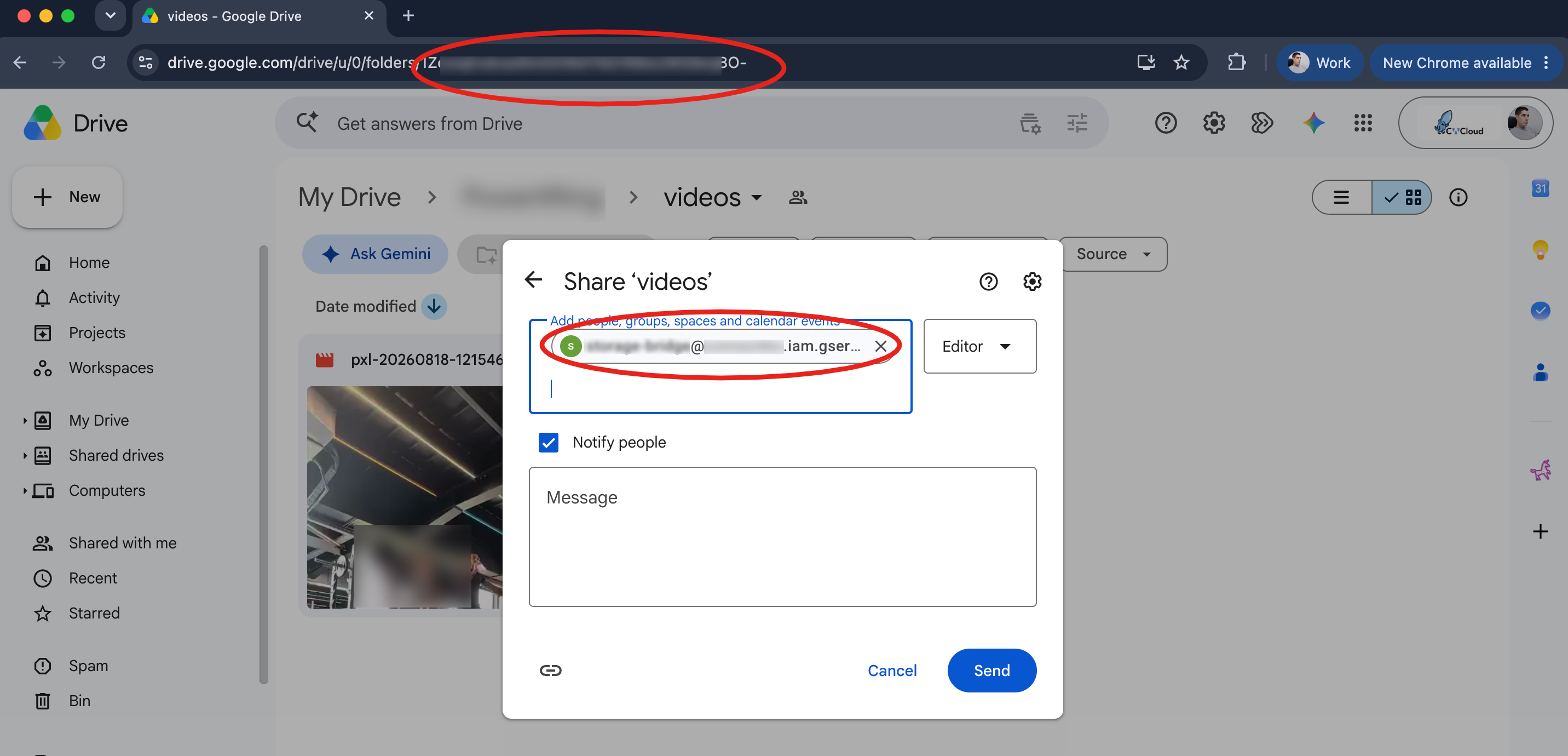
- Create (or pick) a Drive folder, and share it with the service account's email address with edit rights. Without this it cannot write anything - this is the step people miss.
- Copy the folder's id: it is the last part of its URL,
https://drive.google.com/drive/folders/<this bit>. - In the app: Settings → Video storage, pick Google Drive folder.
- Upload the JSON key file and paste the folder id.
- Optionally set a subfolder -
strong-fish/videos, say. It is created inside the shared folder if it does not exist yet, so you do not have to make it by hand first. Leave it empty to write straight into the folder. - Save.
StrongFish grants each uploaded file anyone-with-the-link read access as it writes it, and posts the Drive preview player.
Where files are read from
The two kinds of storage are read differently, and it is worth knowing which you have:
- A bucket is always served by StrongFish itself. The link in the post is an address on the app, not on your bucket; StrongFish fetches the object with your credentials and streams it to the reader. That works whether the bucket is public or private.
- A Drive file is read from Drive. The upload shares it with anyone holding the link and the post carries Drive's own
/previewaddress, which the player embeds. So a Drive file is reachable by anyone who has the link, and StrongFish cannot narrow that. If you need media only your club can see, use a bucket.
Who can watch a bucket's file is your profile's own rule - the same one that decides whether your posts are readable at all: public, your clubs, or your coaches (see signing up). Anybody you shared the storage with can watch it too. Everyone else gets nothing, exactly as if the post had no video.
This bucket is not public under Settings → Video storage only controls one thing: whether the upload asks for public access as it writes. Turn it on when your bucket refuses public files. It does not change who can watch - that is the rule above, always.
Several storages at once
You can configure more than one, and the order matters:
- an upload is written to every one of them - the same file, the same name, in each;
- the link in the post comes from the first.
That is how a club keeps a second copy of its athlete's videos: bucket at the gym first, an off-site bucket second. If a target refuses the upload, the post still goes out through the ones that took it and the failure is reported back to you - so a bucket that has quietly stopped accepting files does not fail your post, but it does not stay a secret either.
Use the arrows in Settings → Video storage to change which one is first. Adding a storage puts it last: promoting it is a decision you make, not a side effect of configuring it.
Sharing your storage
A bucket costs money and a club usually has one. Under Settings → Video storage, open the people icon on a storage, pick members and give them a role:
| Role | What they can do |
|---|---|
| Play | Watch what is in that storage, even when your profile would not otherwise let them |
| Upload and play | The above, plus upload their own videos into it |
Only you can share your own storage, and only you can stop sharing it - someone you gave write access to cannot pass it on.
Where your own uploads go: your own storages first, in your order, then any shared with you. Somebody with none of their own uploads into the first one shared with them, so an athlete whose coach lent them a bucket can post a video without owning one.
Posting a video
- Go to the feed and start a post.
- Choose Add a video and pick a file - MP4, WebM or MOV, up to 20MB by default.
- The upload's URL is appended to your post's text.
- Write whatever you want around it and post.
The player appears automatically. There is no separate link field: the first URL in a post is its embed, whether you uploaded it or pasted a YouTube link.
This works the same in the mobile app: the camera icon under the composer picks a video from your phone.
Sending a video in a message
A private conversation has the same buttons: a picture, a video and a microphone. A video sent this way is uploaded exactly as one in a post and appended to the message as a link, so it plays in the thread.
Recording a voice message
Press the microphone in a conversation to start recording and press it again to stop.
The recording is uploaded when you stop, not when you send, so the message goes the moment you press send.
Both the web app and the phone can record. On a phone Android asks for permission to use the microphone the first time.
A voice message stored in Google Drive plays in Drive's own player rather than in a plain audio bar - Drive serves an embed page for a file, not the file itself. Nothing to configure; it is worth knowing so the difference between two members' messages does not look like a bug.
Sound in a post
A post plays sound the same way it plays video: paste a link to an audio file - an .mp3, .m4a, .wav, or a recording in your own storage - and it becomes a play bar in the post rather than a bare link. Links to files in a private storage are read through the app, so only the members allowed to hear them can.
Troubleshooting
| What you see | What it usually is |
|---|---|
| "Set up your own video storage" | No storage configured yet. The same message covers videos and voice messages. |
| "Your storage rejected this upload" | Wrong keys, wrong bucket name, or ACLs disabled on the bucket. |
| "This video is too large" | Over the size limit - the app tells you what it is on the storage screen. |
| "Not a video a browser can play" | Re-encode as MP4 (H.264). |
| The post shows a link card, not a player | The file's URL is not publicly readable. Check the bucket's policy, or the Drive folder's sharing. |
| The microphone button does nothing on the phone | Permission to record was refused. Grant it in Android's app settings. |